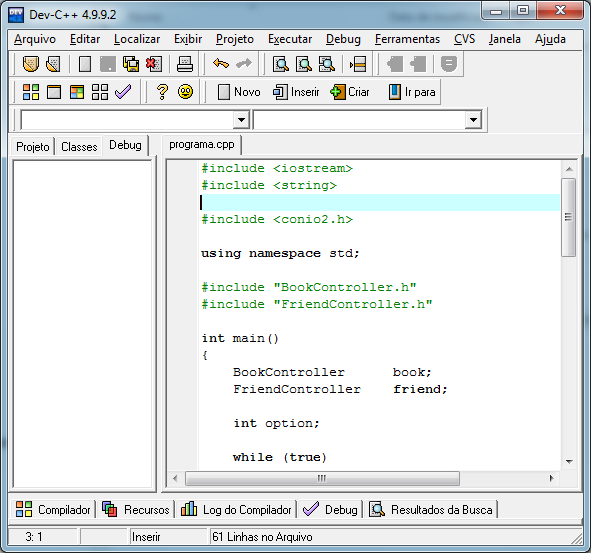



I prepared this document for some colleagues who were having difficulty installing the Conio2.h package for the Dev-C++ IDE. This package includes a library with functionality for developing applications written in C/C++.
To continue with this guide, you need to have Dev-C++ installed.
First we should Download the Conio2.h package from SourceForge.
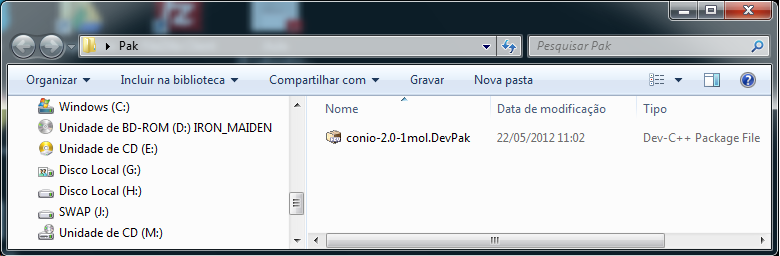
After downloading it, we should run the file with the “DevPak” extension.
A setup will appear, click the “Install” button as shown in the image below:

Now click the “Finish” button as shown in the image below:

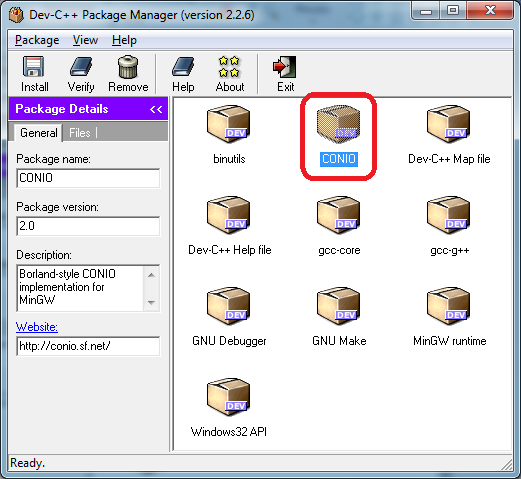
Let’s make sure the Conio2.h library was installed, as shown in the image below:
Now we need to configure Dev-C++ to use the library. Go to the “Tools” > “Compiler Options” menu, as shown in the image below:

Add the following command "-lconio", as shown in the image below:

Now you can enjoy the Conio2.h library.