




Hey folks, I decided to put this tutorial together after searching N times for “How to configure Google Talk for Google Apps in Pidgin”. Well, if you have this problem, you’re about to solve it.
To do this, we just need to configure the client.
Note: This tutorial can also be useful for configuring other instant messaging clients.
Below I list the settings needed for you to log in successfully:
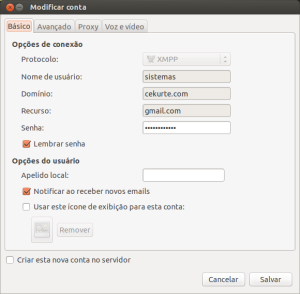
To open the settings, go through the menu: “Contas” > “Gerenciar Contas”. Then select an account and click the “Modificar” button
On the “Básico” or “Basic” tab:
- Protocol (Protocol): XMPP
- Username (Username): your account’s user
- Your account will look like this email: **usuario**@dominio.com, so you’ll fill in the “Username” field with the value shown in bold, to the left of the at sign.
- Domain (Domain): Your account’s domain
- If your account were the same one shown above (usuario@dominio.com), your domain would be: dominio.com
- Resource (Resource): gmail.com
- Password (Password): sua-senha
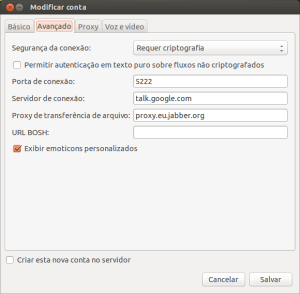
**On the “Avançado” or “Advanced” tab:
 **
**
- Connect port (Connect port): 5222 (if the firewall blocks this port, try 443)
- Connect server (Connect server): talk.googole.com
- File transfer proxy (transfer proxies): proxy.jabber.org or proxy.eu.jabber.org
After applying the settings above, connect and you’ll have your account working in the Pidgin instant messaging client.
Questions? Did the tutorial work? Contribute by leaving your comment!