




After having difficulty installing ZeosLib in Delphi XE2, I decided to share “the way through”.
The ZeosLib Library
The ZeosLib library consists of a set of tools so you can have a native database connection, meaning a connection without auxiliary drivers such as ODBC.
ZeosLib is an open-source project, its installation isn’t that complex, but here’s the recipe, just follow the steps without skipping “any ingredient”.
Downloading the ZeosLib Library
Well, first download the latest version of ZeosLib directly from the Official SVN repository.
If you use SVN for version control, you can use the following command:
| |
If you use GIT for version control, you can use the following command:
| |
Adding the ZeosLib directory to Delphi’s Library Path
Let’s add an environment variable in Windows, if you use Windows Seven like me, go to: Control Panel > System and Security > System. In the sidebar click “Advanced System Settings”, a window like this will appear:
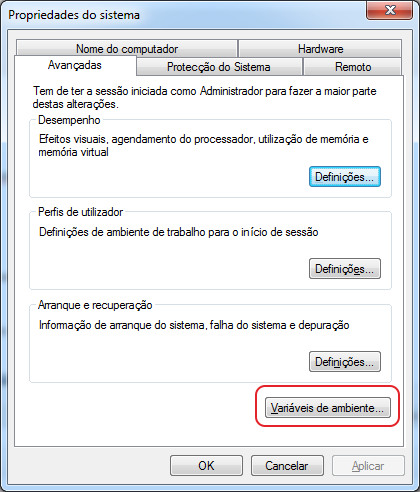
Click the button identified in the figure as “Environment Variables…” and a window like the one below will appear:
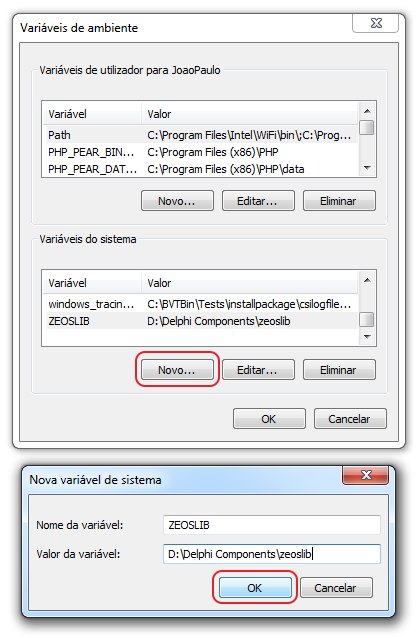
Fill in the box with the following values:
- Variable name: ZEOSLIB
- Variable value: PATH-onde-você-baixou-o-zeoslib, in my case: D:\Delphi Components\zeoslib
Now we’ll add the ZeosLib path to Delphi’s Library Path, to do this, click the “Tools” menu and select “Options…”
A screen like the one below will appear:
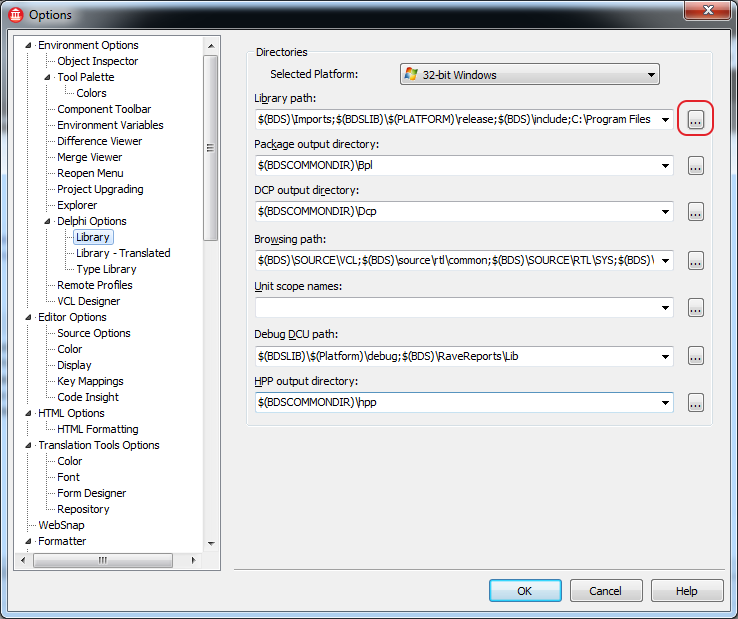
Click the “…” button indicated in the figure above to add a new path.
Add the following paths:
- $(ZEOSLIB)\packages\DelphiXE2
- $(ZEOSLIB)\src\component
- $(ZEOSLIB)\src\core
- $(ZEOSLIB)\src\dbc
- $(ZEOSLIB)\src\parsesql
- $(ZEOSLIB)\src\plain
In the end, you’ll have a result similar to this: 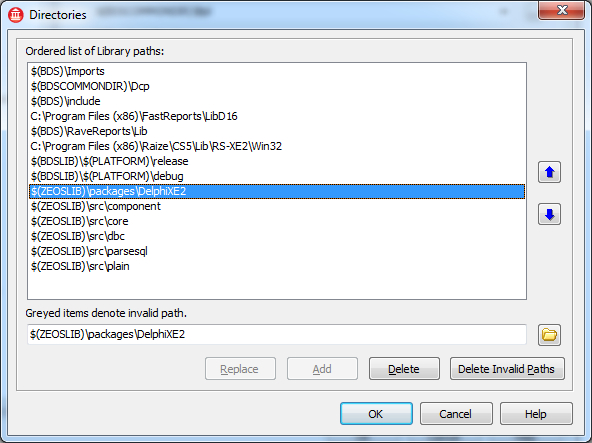
Click “OK”, close the remaining windows and restart Delphi XE2.
Opening the ZeosLib project in Delphi XE2
With Delphi XE2’s Library Path configured, we’ll install ZeosLib. Click the button: File > Open Project… (Ctrl + F11)
Go to the folder where you downloaded ZeosLib, in my case: D:\Delphi Components\zeoslib. Then open the packages > ** DelphiXE2** directory and open the project called ZeosDbo.groupproj.
Compiling ZeosLib in Delphi XE2
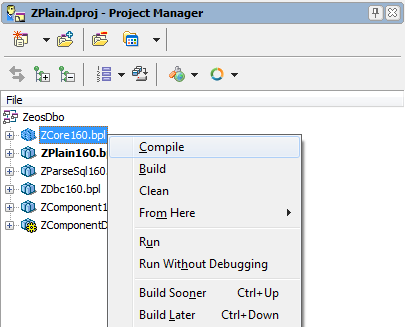
You should compile the packages in the following order:
- ZCore160.bpl
- ZPlain160.bpl
- ZParseSql160.bpl
- ZDbc160.bpl
- ZComponent160.bpl
- ZComponentDesign160.bpl
The image below illustrates this process:
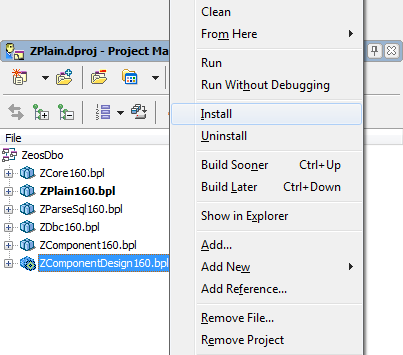
After you compile all the packages, you can finally install it. Click the ZComponentDesign160.bpl package and select “Install”, as shown in the image below:
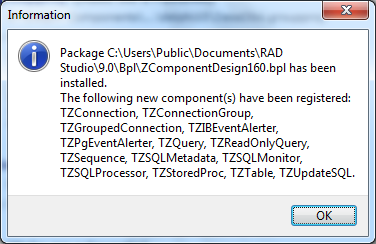
If everything goes well, a message like this will appear:
We’ve finished installing the library, restart Delphi XE2 and make good use of the ZeosLib component.
If you have questions or a problem with installation, leave us a comment.